Connect your Azure account - Diagrams only
To retrieve data and understand your infrastructure, Holori needs access to your Azure account. This procedure is made in full compliance with Azure access rules. We will guide you step by step through this configuration process.
You must first define which feature you want to use between cost visibility and diagrams To get both costs visibility and diagrams, follow the procedure for costs visibility connection.
The following procedure is for INFRA DIAGRAMS.
The following procedure will guide you through the required steps.
Add a new provider account on Holori
In Holori App, click on "Cloud Accounts" in the left navbar and click on "+Connect now" under the Azure logo.
On the Azure integration page, start by giving your account a name, it's one only used in Holori, choose something that will help you identify your diagram easily.
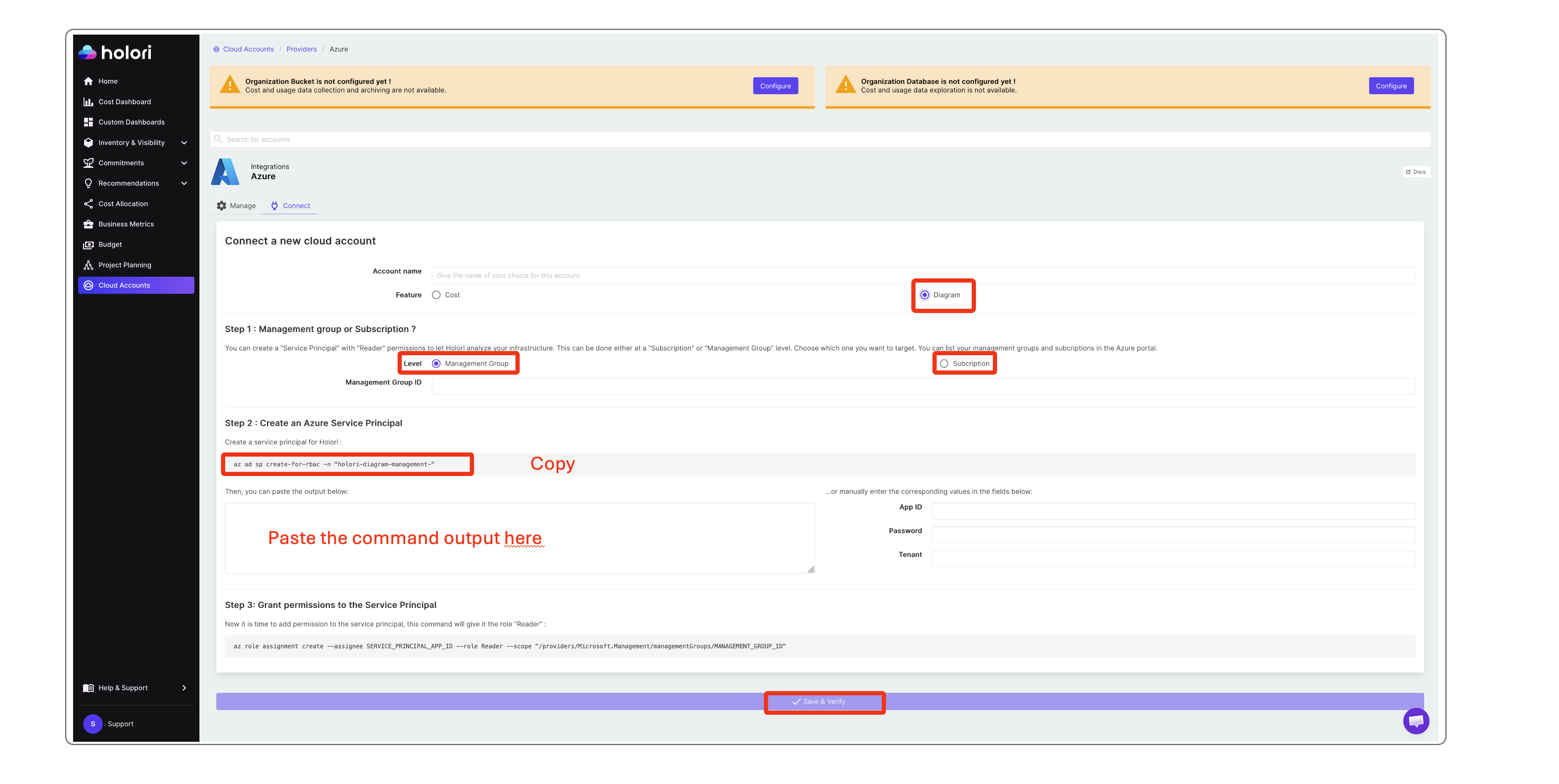
Then select "Diagram" since you only want to generate diagrams if you are following this procedure.
Step 1: Management group or Subscription ?
You can create a "Service Principal" with "Reader" permissions to let Holori analyze your infrastructure. This can be done either at a "Subscription" or "Management Group" level. Choose which one you want to target. You can list your management groups and subcriptions in the Azure portal.
For a more granular view, opt for the subscription level, you can of course add multiple subscriptions. For a macro view, opt for the Resource Group option.
Step 2: Create an Azure Service Principal
- To create the Service Principal, copy the command. Please ensure that your Management Group ID or Subscription ID as been correctly integrated into the command
- Go to your Azure console and open the embedded terminal
- Paste the command and copy the output
- Back on Holori App, paste the command output in the corresponding field. Your values will automatically extracted and written on the right.
Step 3: Grant permission to the Service Principal
You must then add the right permission to the Service Principal (the Reader permission).
- Copy the command at the bottom of the page then paste it into your Azure console's terminal and run it.
- Come back to Holori App, then click on "Save and verify" at the bottom of the page.
Azure usually takes a bit of time for the initial diagram generation, usually one night, come back tomorrow morning and you should be ready to satrt exploring your infra.