Connect your OpenAI account
Holori offers an OpenAI FinOps solution to help you track and optimize your OpenAI API costs.
In the Holori App, select "Cloud Accounts" from the left menu and click "+ Connect now" under the OpenAI logo.
Holori uses the OpenAI Costs API and a read-only Admin Key. Holori cannot perform any actions that incur costs; the Admin Key only grants read access to your usage and billing data.
You must be an Organization Owner in your OpenAI organization to create an Admin Key.
Step 1: Open your OpenAI Admin Keys page
Navigate to the Admin Keys page of the OpenAI console.
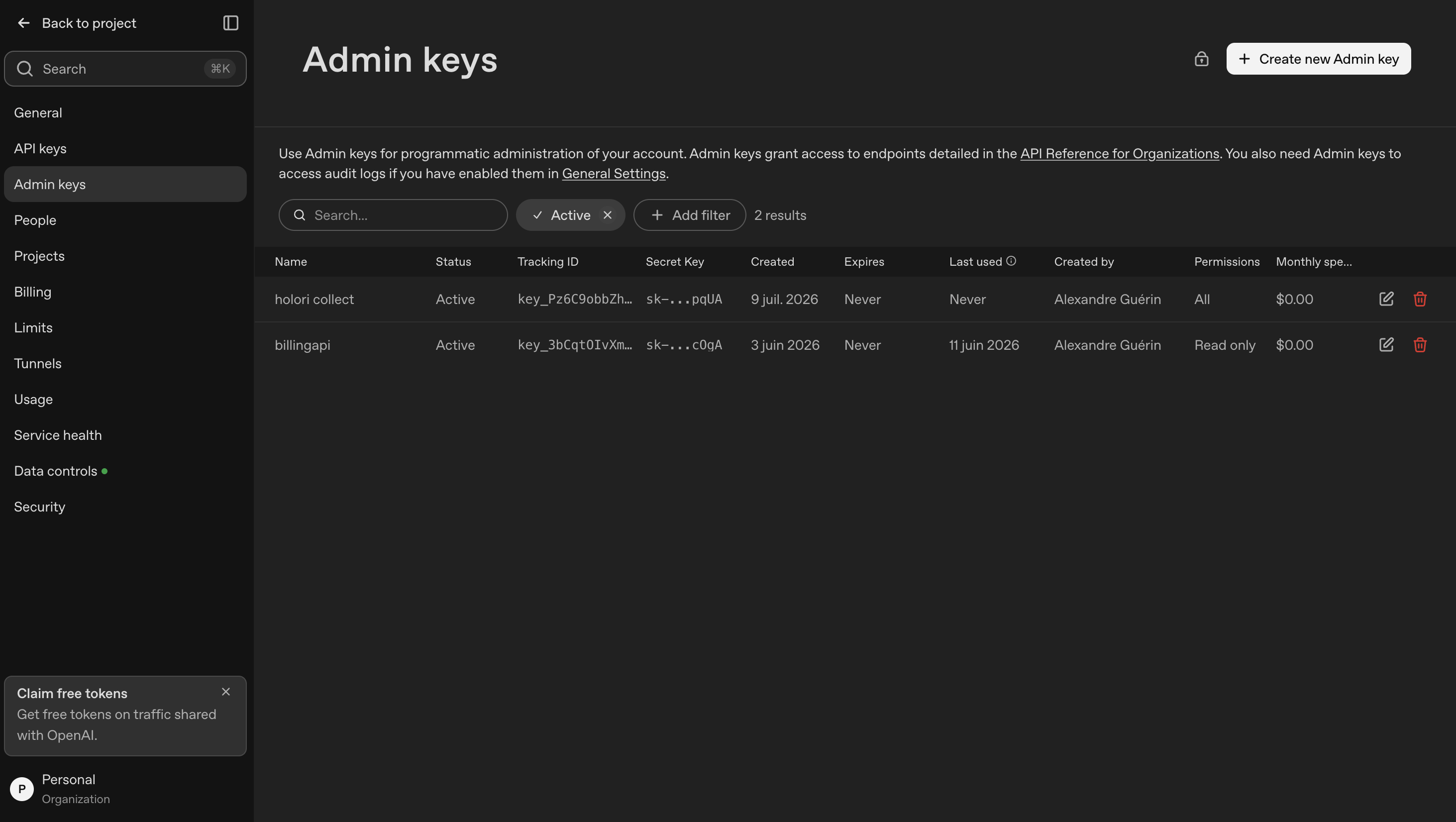
Step 2: Create a new Admin key
Click + Create new Admin key at the top of the page.
- For Name, use an identifiable name, such as holori_integration
- For Permissions, select Read only
- Click Create admin key
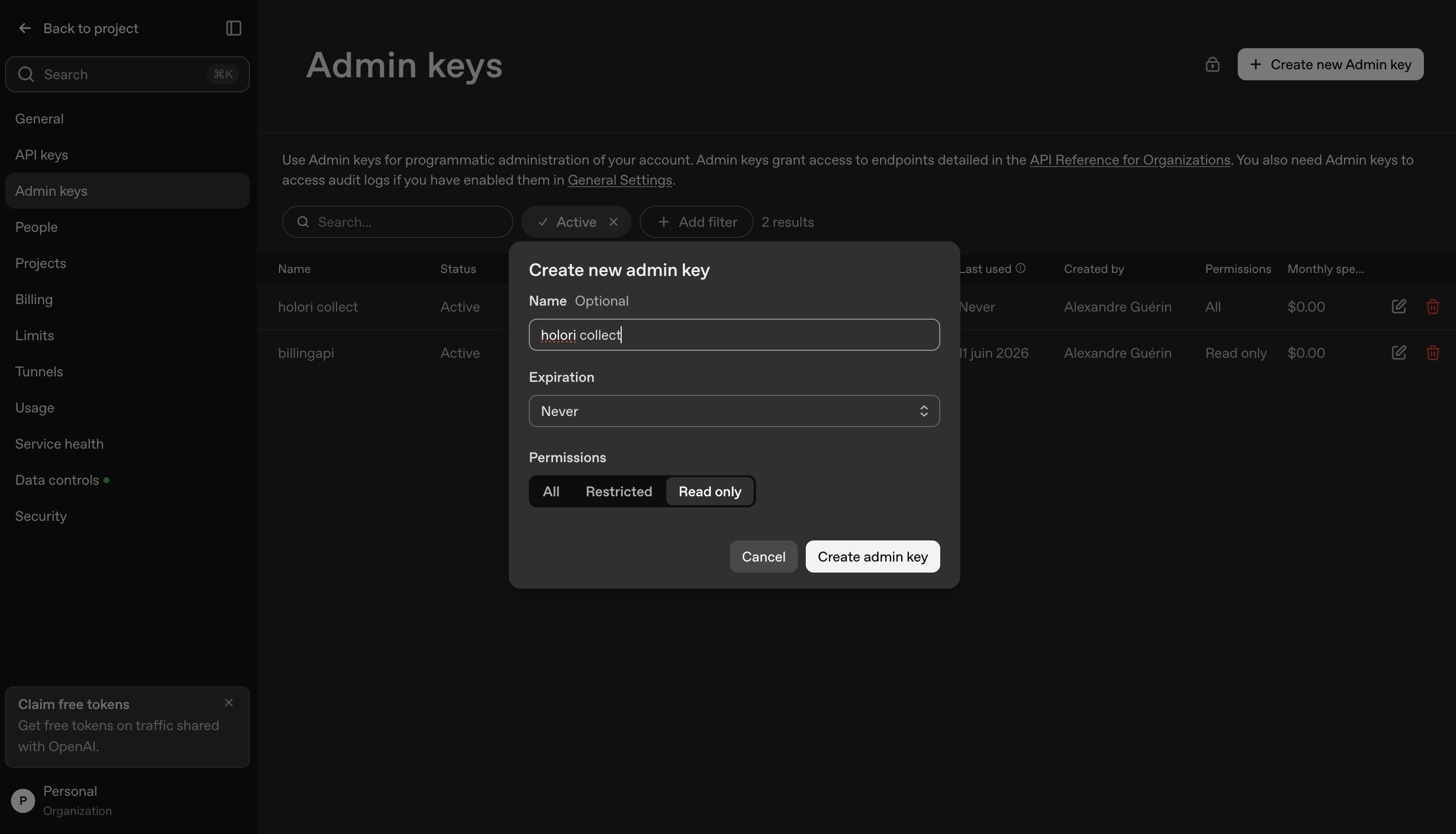
Step 3: Copy your Admin key
Copy the generated key. For security reasons, OpenAI only displays it once, so make sure to save it before closing the window.
Step 4: Add your Admin key to Holori
Back in the Holori App, paste the Admin key into the corresponding field.
- For Description, enter any descriptor to identify this integration, such as your organization's name
Save and verify
Once all the steps above are completed, click Save and Verify at the bottom of the page.
Once the import completes, your costs become available in Holori.
If you decide to remove your OpenAI integration from Holori, all costs associated with your OpenAI Admin Key will be removed from the Holori App.